Interlude.Input.DirectoryPath
In Depth
Input.DirectoryPath(label, defaultValue: "", key: "", tooltip: "", helpText: "")
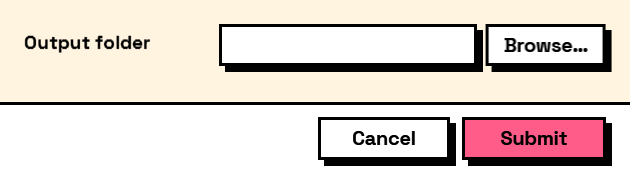
A folder path with a Browse button, and a box that can also be typed or pasted into.
The answer is a single path string, without a trailing separator. The folder is not created and not checked — attach Rule.FolderExists with Behavior.WithValidation when the graph cannot cope with being pointed at somewhere that is not there, which is worth doing for an export destination typed by hand.
The inputs are:
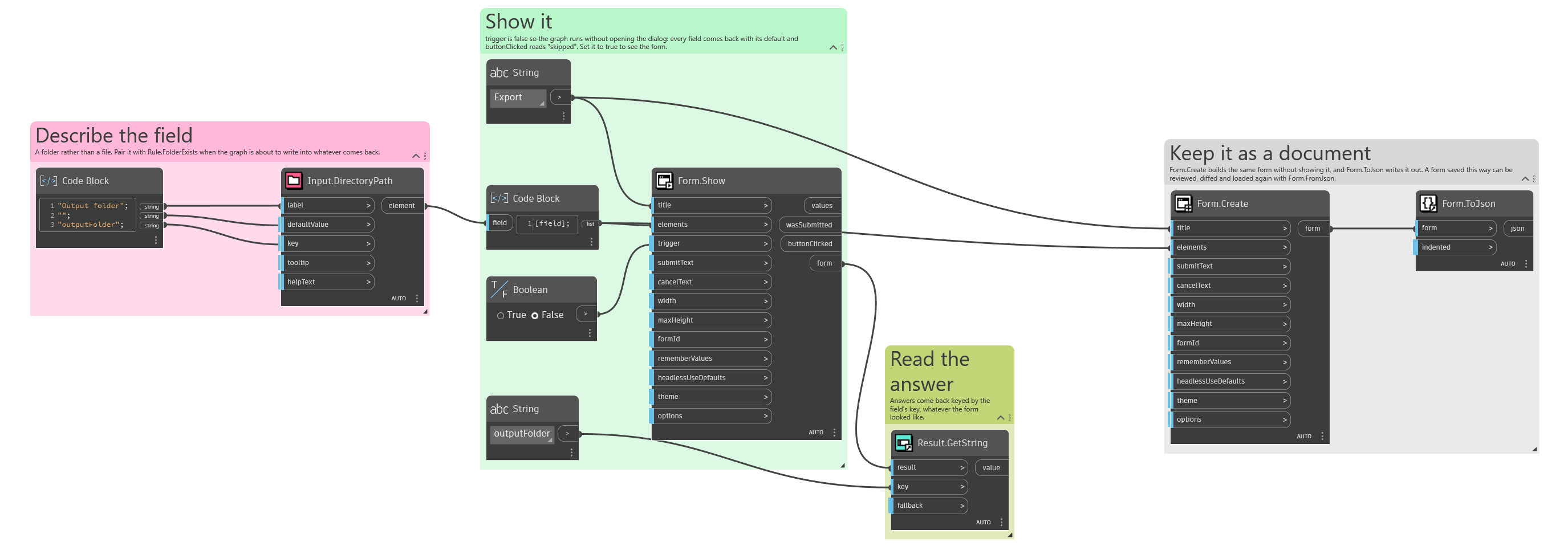
label(string) — Caption shown beside the field.defaultValue(string, defaults to"") — Path the field starts with.key(string, defaults to"") — Name of this answer in the results. Derived from the label when empty.tooltip(string, defaults to"") — Hover text.helpText(string, defaults to"") — A line of guidance shown under the field.
Returns element — The form element.
Search terms: folder, directory, path, browse.
About the Input nodes
The fields a user answers.
Every input returns an element describing the control, not the control itself, and every one takes the same three trailing options: key, which names the answer in the results dictionary; tooltip; and helpText. Leave key empty and it is derived from the label — convenient for a quick form, but give real keys to any graph you intend to keep, because renaming a label would otherwise rename the answer.
Choice inputs take the values themselves, not their display names. Selecting an option hands back the original object — a Revit element, a family type, whatever was put in — so the answer is usable directly instead of needing a lookup back from a string.
Example File
An example graph ships beside this page: Interlude.Input.DirectoryPath.dyn
The form it builds: