Interlude.Input.Number
In Depth
Input.Number(label, defaultValue: 0, minimum: null, maximum: null, increment: 1, decimalPlaces: 2, unit: "", key: "", tooltip: "", helpText: "")
A decimal number field, with spinner buttons and an optional unit suffix.
The answer is a number, never a string, so it can go straight into arithmetic. Read it with Result.GetNumber.
minimum and maximum clamp what the field will accept as it is typed, which is not the same as validating it: a value outside the range never gets entered rather than being entered and then complained about. Leave them null for an unbounded field.
unit is decoration shown inside the field — it is not converted or appended to the answer, which stays a bare number.
The inputs are:
label(string) — Caption shown beside the field.defaultValue(number, defaults to0) — Value the field starts with.minimum(object, defaults tonull) — Lowest allowed value. Null for no lower bound.maximum(object, defaults tonull) — Highest allowed value. Null for no upper bound.increment(number, defaults to1) — Step applied by the spinner buttons and arrow keys.decimalPlaces(integer, defaults to2) — Digits shown after the decimal separator.unit(string, defaults to"") — Suffix shown inside the field, such as "mm".key(string, defaults to"") — Name of this answer in the results. Derived from the label when empty.tooltip(string, defaults to"") — Hover text.helpText(string, defaults to"") — A line of guidance shown under the field.
Returns element — The form element.
Search terms: number, double, decimal, numeric, value.
About the Input nodes
The fields a user answers.
Every input returns an element describing the control, not the control itself, and every one takes the same three trailing options: key, which names the answer in the results dictionary; tooltip; and helpText. Leave key empty and it is derived from the label — convenient for a quick form, but give real keys to any graph you intend to keep, because renaming a label would otherwise rename the answer.
Choice inputs take the values themselves, not their display names. Selecting an option hands back the original object — a Revit element, a family type, whatever was put in — so the answer is usable directly instead of needing a lookup back from a string.
Example File
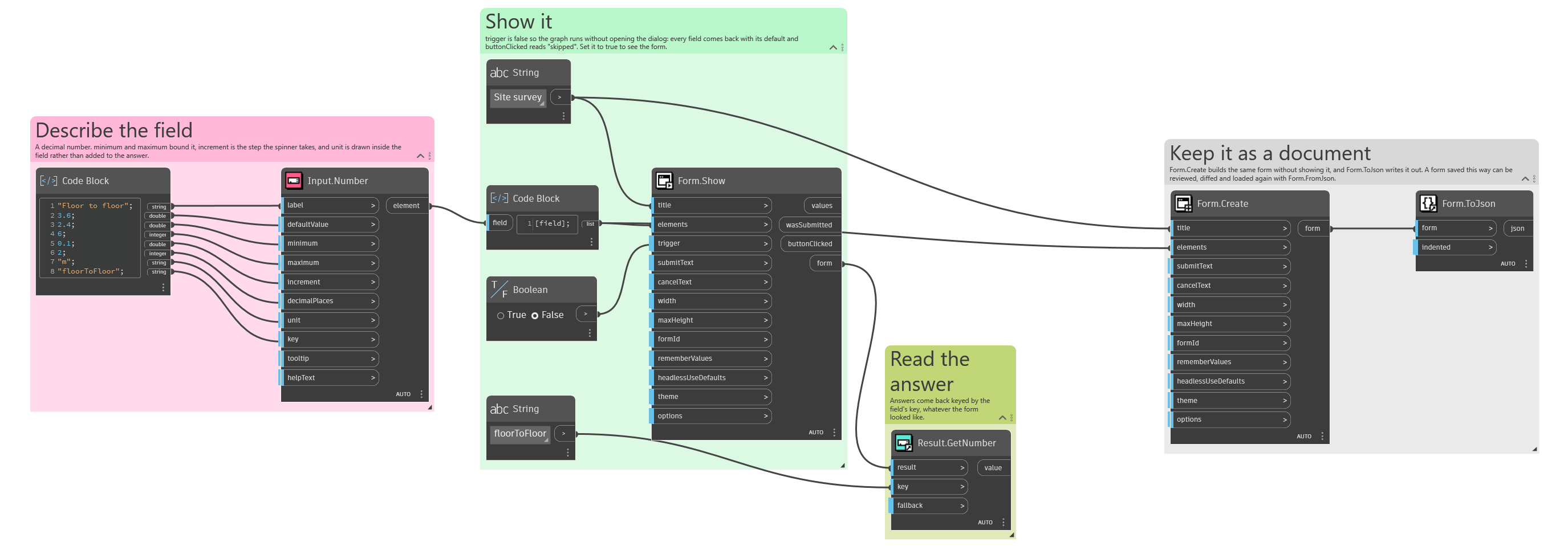
An example graph ships beside this page: Interlude.Input.Number.dyn
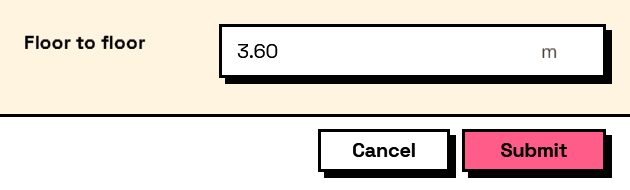
The form it builds: